Manufacturing & Logistics
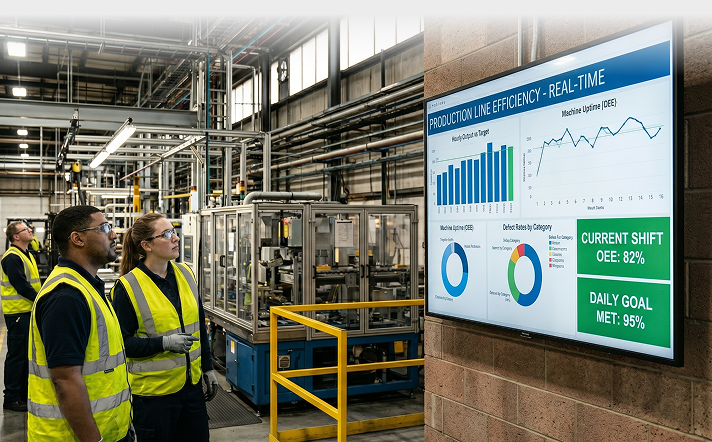
Broadcast real-time production, supply chain, and equipment KPIs on screens across the factory floor, helping frontline teams hit shift goals and reduce downtime.

Skykit digital signage puts live Microsoft Power BI reports on screens across your offices, stores, clinics and facilities. When every team sees the same numbers, communication gets clearer and decisions get better.
Manage screens from one place
Keeps reports off the public web
Live data, not screenshots
Works with your SSO and MFA
Get a demo and see how
When information moves from the desktop to the floor, people see it. In one customer’s employee survey, 93% said they were aware of the Skykit displays in their facilities. Of those, 70% make a point of viewing them regularly and 50% check them every day.
You invested in Power BI to close the gap between data and decision-making. But when insights live on a desktop, only employees with logins see them, and teams across the organization make decisions without the context they need.
Put the same reports on screens, and the data stops living behind a login.
of employees are aware of the displays
of those view them regularly
of those check them daily
Source: a Skykit customer’s employee survey.
TESTIMONIAL
“I really appreciate how Skykit has made it so much more efficient to gather, organize, and present data to the entire company. It saves us a lot of time and allows us to focus on our core business instead of wrestling with multiple, disjointed solutions.”
There are three common ways to put Power BI on a TV: a laptop or PC in full-screen mode, a Publish to web link, or digital signage. A laptop works for a meeting, and a Publish to web link makes the report public. With digital signage, a small media player plugs into each TV and is managed online, so the screen runs all day, signs in on its own and needs no computer attached.
| What an all-day screen needs | Skykit | Laptop or PC in full-screen mode | Publish to web link |
|---|---|---|---|
| Shows a report full screen | Yes | Yes | Yes |
| Shows current data | Yes | Yes | Cached for an hour |
| Keeps the report off the public web | Yes | Yes | No. Anyone with the link can view it. |
| Signs in on its own, including MFA | Yes | No | No sign-in at all |
| Runs without a computer at the screen | Yes | No | Needs a device with a browser |
| Schedules content by screen and time | Yes | No | No |
| Shows you when a screen goes offline | Yes | No | No |
If you can open a Power BI report or dashboard in a browser, Skykit can put it on a screen. The media player opens the live report itself, so numbers update as they would on a laptop.
Reports and dashboards. Anything you can open in a browser, using its full-screen link.
Several reports in rotation. Group reports together and set how long each one stays on screen.
Dashboards alongside other content. Place a report in a layout beside announcements or a weather feed, or mix it into a playlist with your other content.
A clean full-screen view. After sign-in, Skykit hides the Power BI filter pane, bottom bar and pop-ups so the report gets the whole screen.
Live data, not a screenshot. The media player renders the report itself and keeps it open in the background, so it’s ready in under a second each time it rotates in.
Once a Skykit media player is plugged into the TV, setup takes three steps in Skykit Content Management.
Open the report in a browser on the exact view you want. Copy the link from the address bar. In Skykit Content Management, add Power BI as new content, paste the link and pick a saved sign-in.
Pick a standard login or the SSO option your company uses for Microsoft. If you use SSO, Skykit support helps you configure it.
Set how often the report reloads, then add it to a playlist or layout for the screens you choose.
Organizations in manufacturing and logistics, healthcare, financial services, retail, education and corporate sales use Skykit to securely display Power BI dashboards on digital signage.
Broadcast real-time production, supply chain, and equipment KPIs on screens across the factory floor, helping frontline teams hit shift goals and reduce downtime.
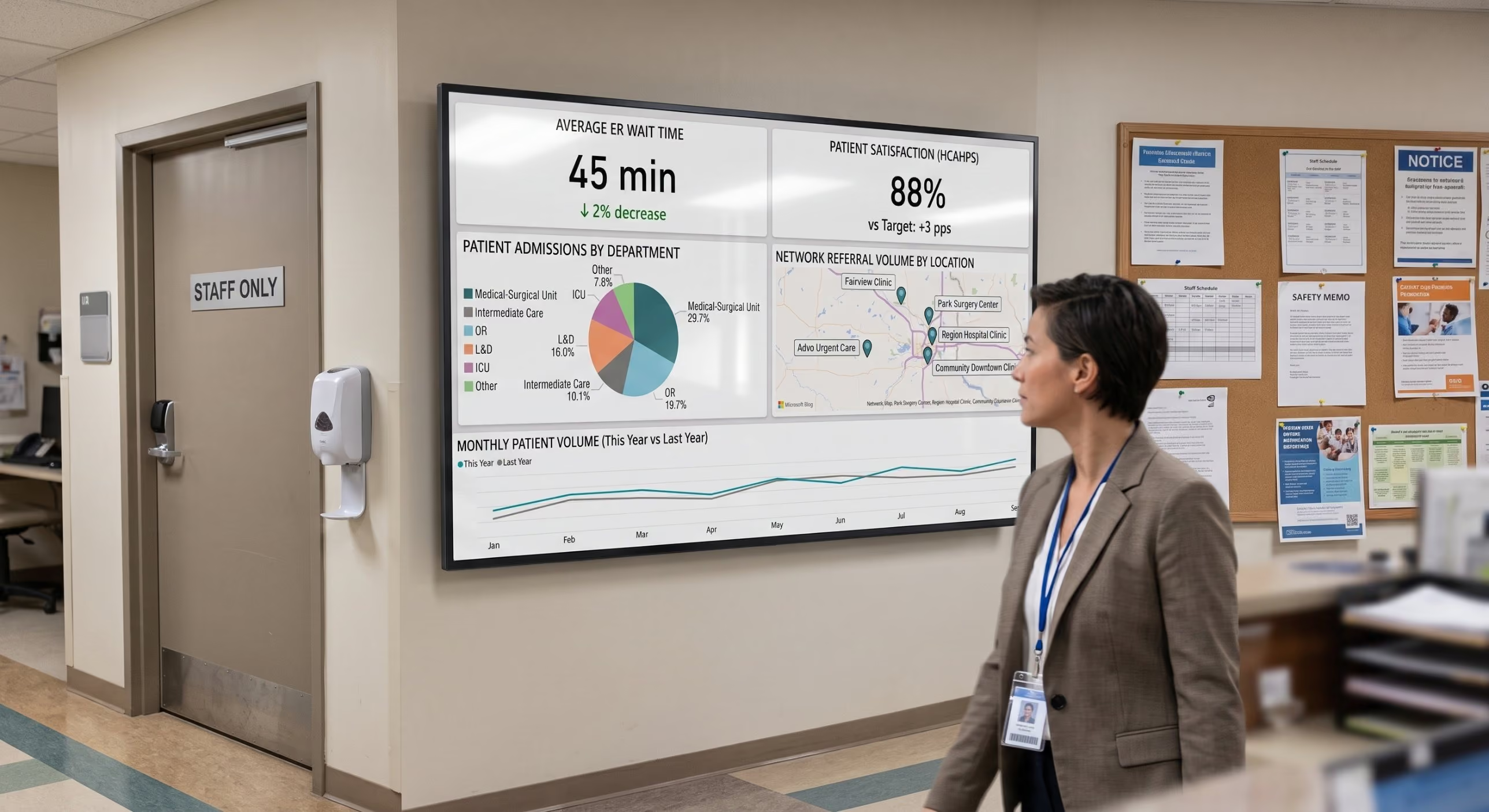
Securely display patient flow and operational metrics in administrative areas, keeping care teams aligned without exposing sensitive data.
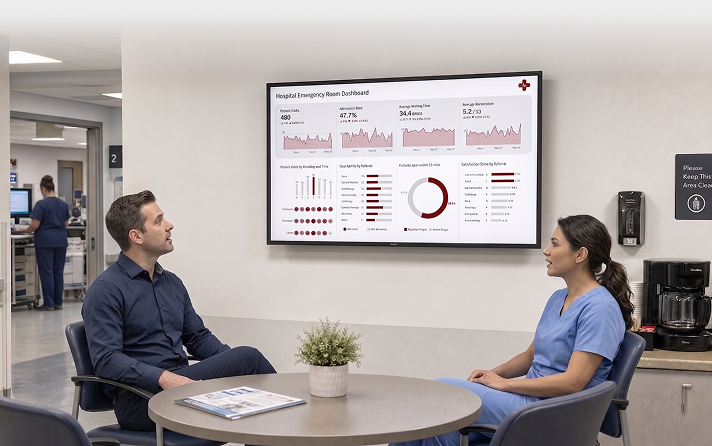
Surface risk, compliance, and performance metrics on screens in shared workspaces, helping teams stay current across banking, insurance, and wealth management.

Push real-time inventory and demand insights to backroom displays, helping store teams make smarter stock replenishment and sales decisions during their shift.
Share facility operations and institutional performance metrics on screens throughout campus offices, keeping staff informed without hunting down separate systems.

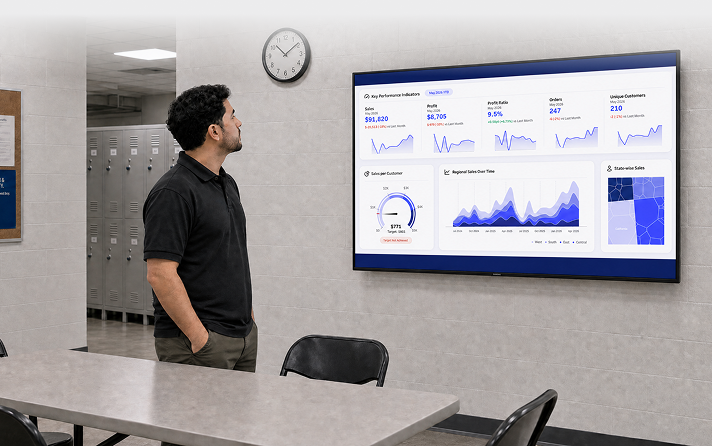
Put pipeline, revenue, and performance dashboards on screens in shared office spaces, keeping sales and leadership teams aligned on targets in real time.

Yes. Power BI sits behind strict data permissions and Microsoft identity management, and Skykit works within them. The media player signs in with the method your company already uses, including single sign-on and MFA, and it performs the login itself.
Skykit supports standard logins, as well as SSO through Okta and ADFS (including Azure AD). SSO setups differ by company, so Skykit support configures yours with you in a 15 to 30 minute session.
Skykit supports MFA through time-based one-time passwords (TOTP), the six-digit codes from an authenticator app. You enter the secret key once at setup, and the media player generates the codes itself.
With login concealment on, the screen shows an “Authenticating” message while the player signs in, so credentials never appear on the display.
The sign-in is encrypted in storage and in transit, and it is never cached on the media player.
Skykit is SOC 2 Type 2 compliant across software, firmware and hardware.
Power BI is one of 100+ dashboard tools Skykit connects to, so the same screens can show Tableau, Salesforce or Grafana alongside your Power BI reports. That includes dashboards hosted only on your own network.
Power BI doesn’t live in isolation. It’s often the last stop for data that started in Excel, Dynamics 365 or Teams. Skykit extends the reporting your teams already trust from the desktop to every screen across your organization.
Yes. A Skykit media player plugs into the TV by HDMI, signs in to Power BI and shows the report full screen. No laptop or PC stays connected.
To improve communication and decision-making across the organization. When the same live numbers are on screens in offices, stores, clinics and plants, teams stay aligned on targets, spot problems during the shift and act without waiting for a report or a meeting. On a desktop, Power BI reaches only the people who log in.
No. The media player signs in to Power BI the way an employee does, so the report stays off the public web. You don’t need Publish to web or a public link.
Any TV or display with an HDMI input, plus a Skykit media player. Select displays from Sony, Hisense, Bluefin and Philips run Skykit without a separate media player.
No. An administrator saves the Power BI sign-in once during setup. After that the media player signs in on its own, and viewers never log in at the screen.
No. After the first sign-in the media player keeps the report open. When the Power BI session expires, it signs in again on its own, including the MFA step. If the account is locked or its password has changed, the screen shows an “Authenticating” message until the sign-in is updated.
The media player opens the report itself and keeps it open in the background, like a browser tab, so data updates on screen as it would on a laptop. When a report rotates back in, it reconnects in under a second. You can also set how often each report fully reloads.
Skykit supports time-based one-time passwords (TOTP), the six-digit codes from an authenticator app. You enter the secret key once at setup, and the media player generates the codes itself.
The sign-in is stored encrypted in a key management service, sent to the media player encrypted and never cached on the device. Skykit recommends a dedicated service account that can only view the reports you display.
Not one per screen. Skykit signs in with one Power BI account you choose, ideally a service account with view-only access, and every screen showing that report uses it. The account needs access to the reports you want to show.
Yes. The media player renders dashboards itself, so it can show ones hosted on a local server that cloud-based services can’t reach.
Yes. Connect Power BI once, and the same report can play on any Skykit screen in any location. You choose which screens show it and when.
Skykit’s support team is available Monday through Friday, 8 AM to 6 PM Central, and the help center is available 24/7. As one G2 reviewer put it: “Their customer support team is exceptional.”
See how easy it is to connect your Power BI data to Skykit and get it in front of every employee who needs it.
